7.1 Plan a campaignIn this guide, a campaign means a set of content that runs on chosen screens for a set period, such as a seasonal promotion or a new rate board. In MATX, you run a campaign with playlists or layouts and one or more Schedules .
Decide which screens the campaign targets and when it should run.
Prepare the media in the Media Library .
Build the layouts and playlists for the campaign.
Create the schedules. See Create a schedule .
Follow the Campaign Health card on the Dashboard once the campaign is live.
Tip Use the same name pattern for all items in a campaign, for example the campaign name followed by the screen type. It makes each piece easy to find.
7.2 Create a scheduleIn the sidebar, select Schedules and start a new schedule.
Choose the playlist or layout to play.
Screenshot Schedules, choose contentSet the start and end dates .
Choose the days of the week.
Set the times the content plays.
Select the target screens.
Screenshot Schedules, target screensSave the schedule.
Note Each screen has a Time Zone set when the device was added. Check it before you schedule across regions. See Add a device in the portal .
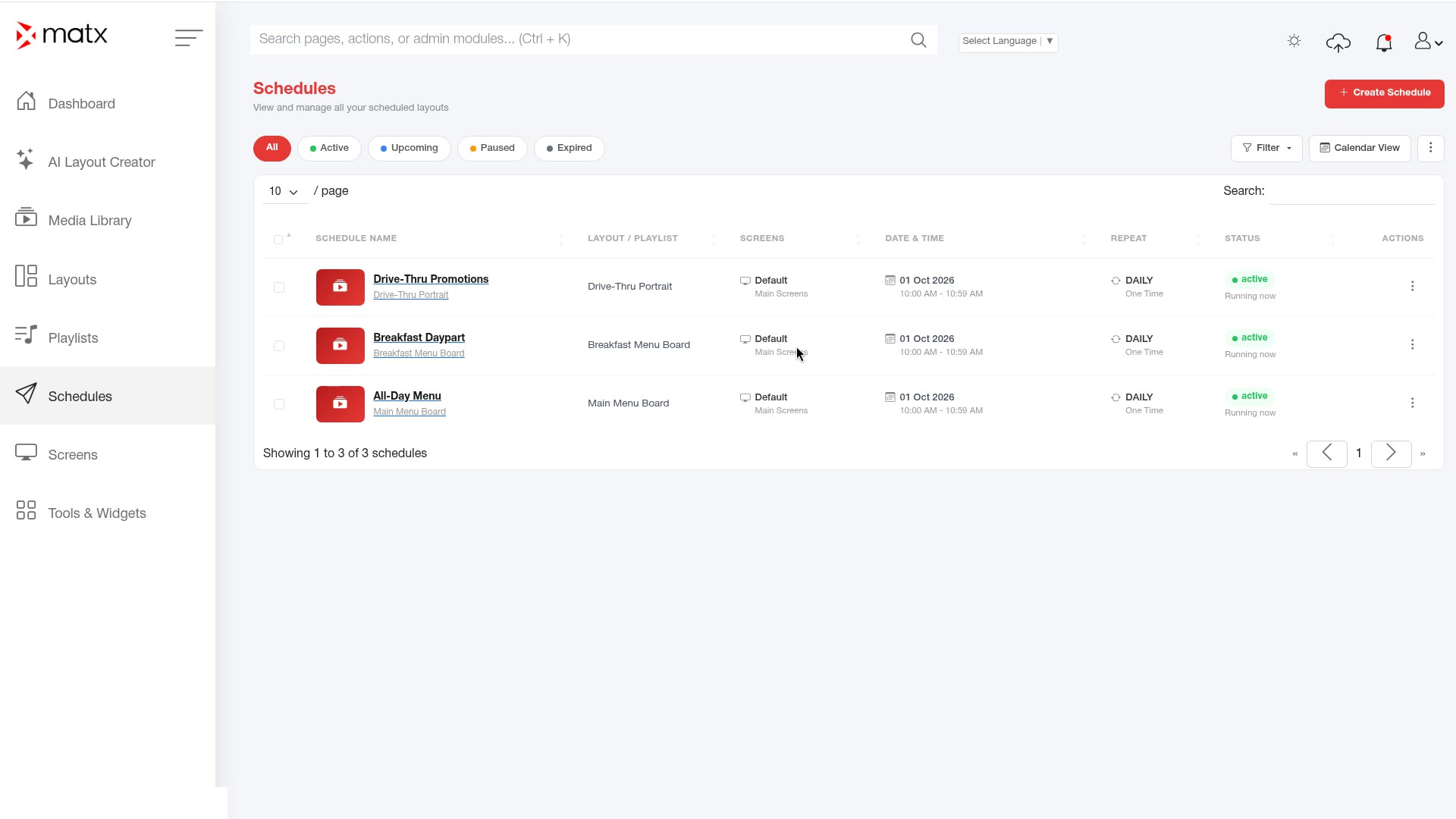
7.3 Schedule by daypartDayparts let the same screen show different content at different times of day, such as breakfast, lunch and dinner menus.
Create one playlist or layout for each daypart.
Create a schedule for the first daypart and set its days and times.
Repeat for each daypart, targeting the same screens.
Review the schedules together to make sure the times do not leave gaps you did not intend.
Schedules, daypart schedules for one screen Tip Restaurants often switch menus by daypart; banks often show rate boards at opening. Set the schedules once and they run on time every day.
7.4 Check that a schedule is liveOpen the Dashboard .
Check Pending Publish Jobs and the Publish Queue .
Check that target screens are online on the Screens page.
Confirm on the screen itself, or with branch staff, that the right content is playing.
 Digital Signage