6.1 Layout basics
Tutorial video Layouts and the AI Layout Creator A layout decides what appears where on a screen. You build it in the layout editor from these parts:
| Part | What it does |
|---|
| Zones | Areas of the screen that hold media, text or widgets. |
| Safe areas | Guides that help keep important content away from the screen edges. |
| Layers | Control which elements sit in front of or behind others. |
| Orientation | Sets the layout for a landscape or portrait screen. |
6.2 Build a layout in the editor
In the sidebar, select Layouts and start a new layout.
Set the orientation.
Start from a preset, or use Auto Layout, Screen Split or Merge to arrange zones.
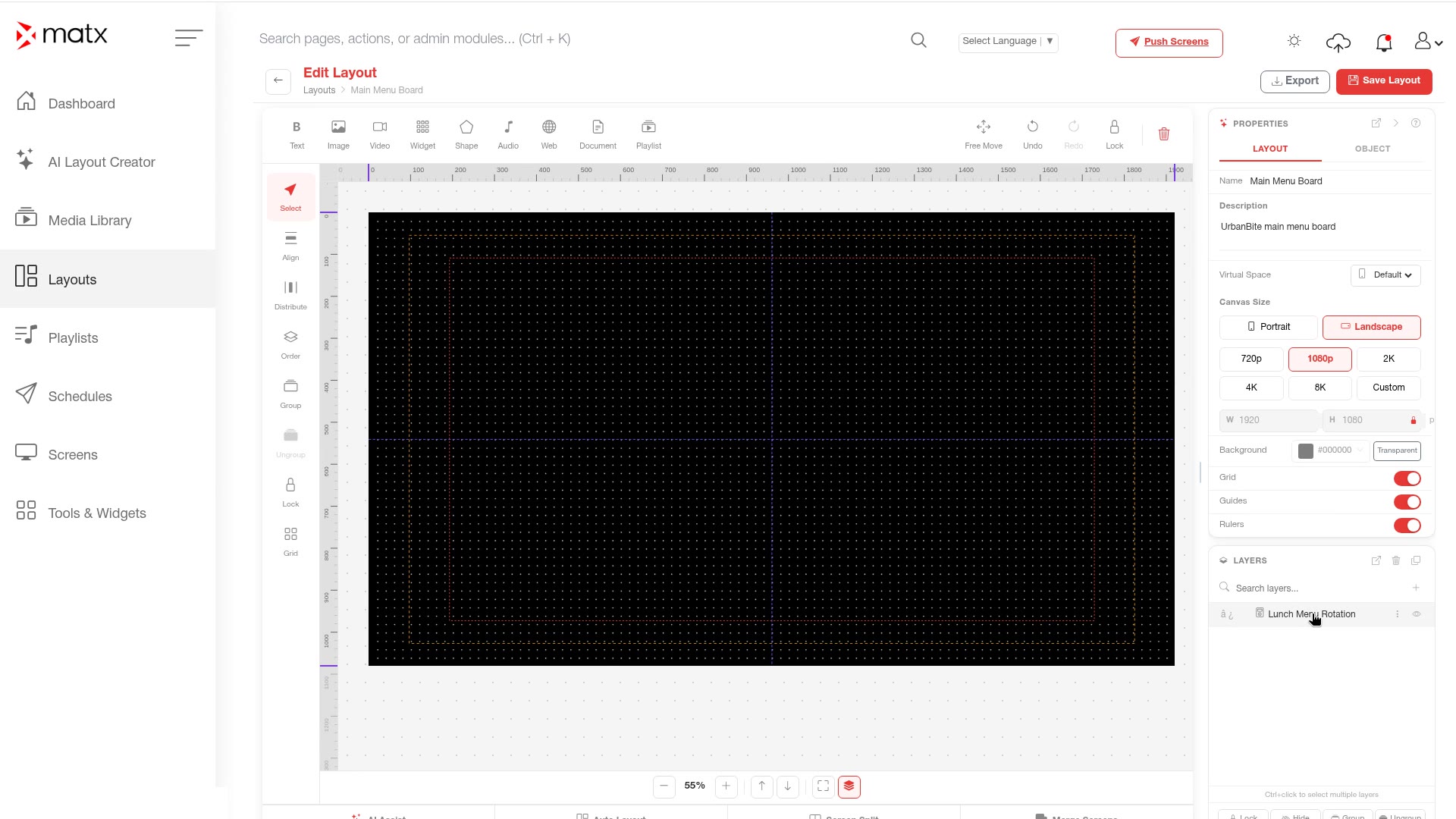 Layouts, editor with zones and presets
Add media, text or widgets to each zone.
Use layers to order overlapping elements, and check content against the safe areas.
Name and save the layout.
- Auto Layout arranges zones for you.
- Screen Split divides the screen into zones.
- Merge combines zones into one.
6.3 Generate layouts with the AI Layout Creator
The AI Layout Creator drafts layout options from a short description, so you do not have to start from a blank canvas.
In the sidebar, select AI Layout Creator.
Write a prompt that describes what you need, for example the product, the offer and where the screen is.
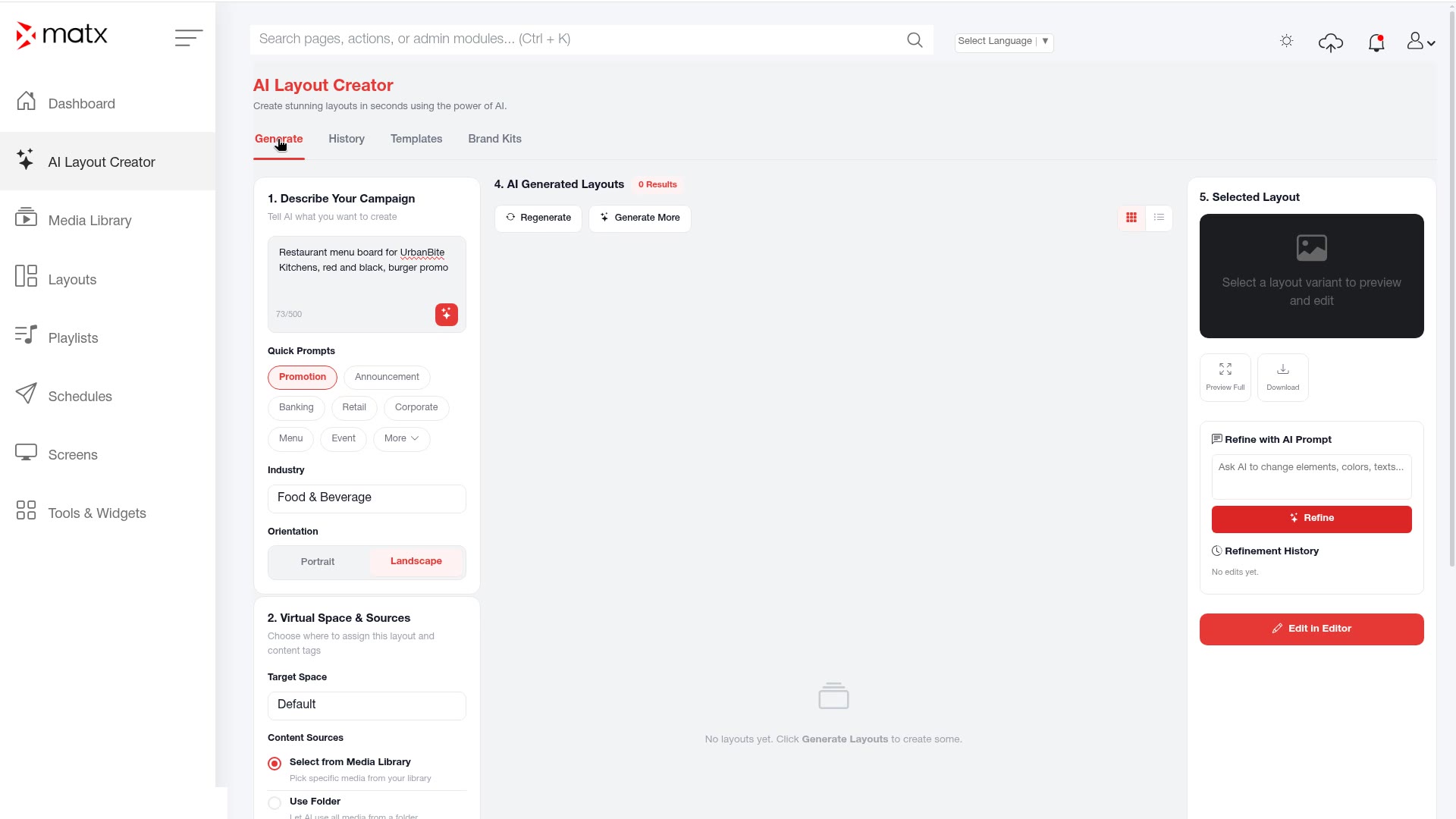 AI Layout Creator, prompt and options
Choose the industry.
Select a brand kit so the designs use your colours and fonts.
Click Generate. MATX creates 8 variations to compare.
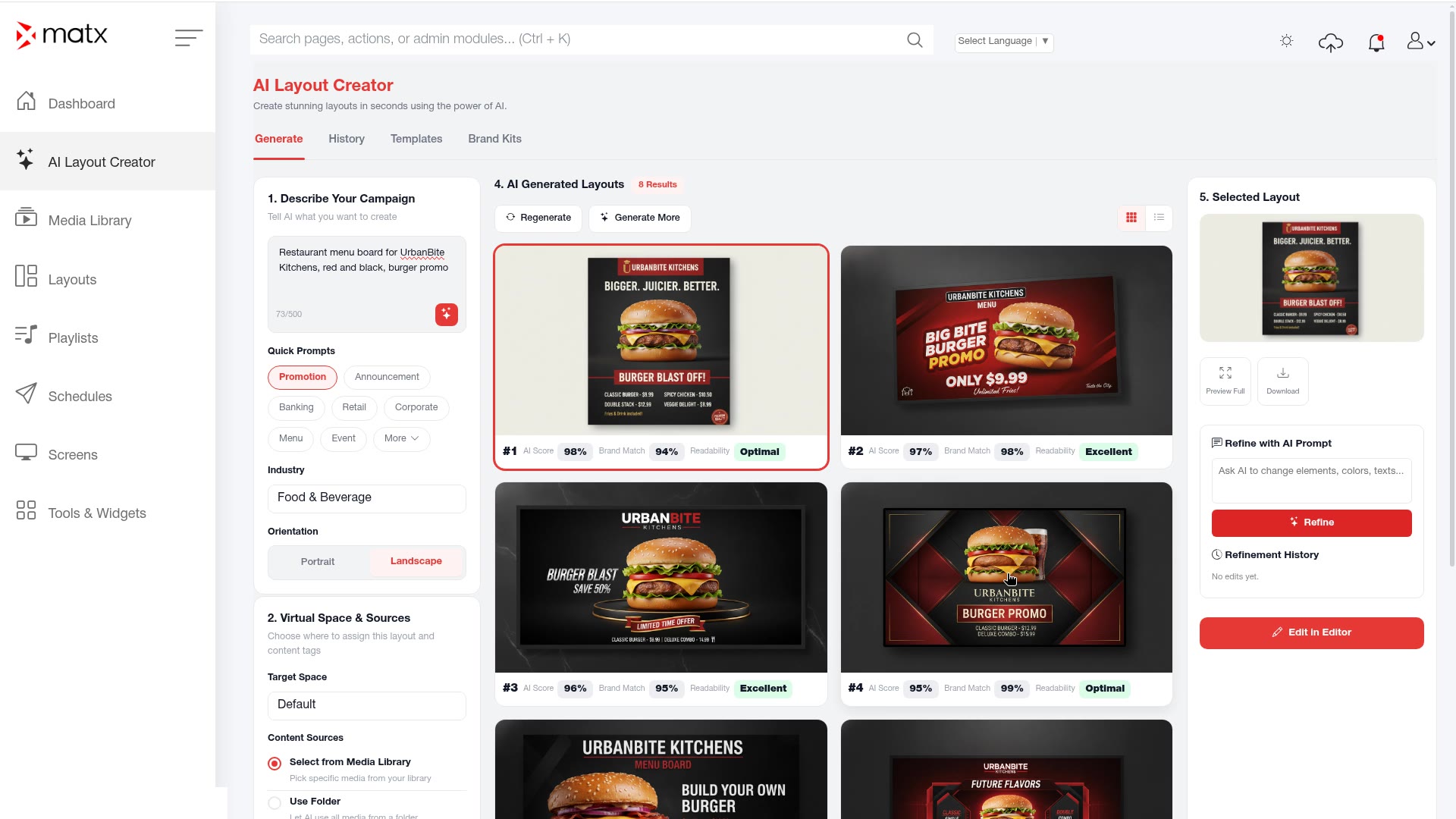 AI Layout Creator, 8 generated variations
Pick a variation and save it to a layout.
Open the layout in the editor to fine-tune and save it.
6.4 Brand kits, templates and History
- Brand kits store your brand colours and fonts for use in the AI Layout Creator.
- Templates give you a starting point for common designs.
- History lets you return to earlier generations.
Open the AI Layout Creator.
Open brand kits, templates or History.
ScreenshotAI Layout Creator, History and brand kitsSelect an item to reuse it.
6.5 Add a widget from Tools & Widgets
Tutorial video Tools & Widgets Widgets add live content to a layout, such as the time, the weather or a countdown to a launch.
In the sidebar, select Tools & Widgets.
Open the Widget Library and choose a widget.
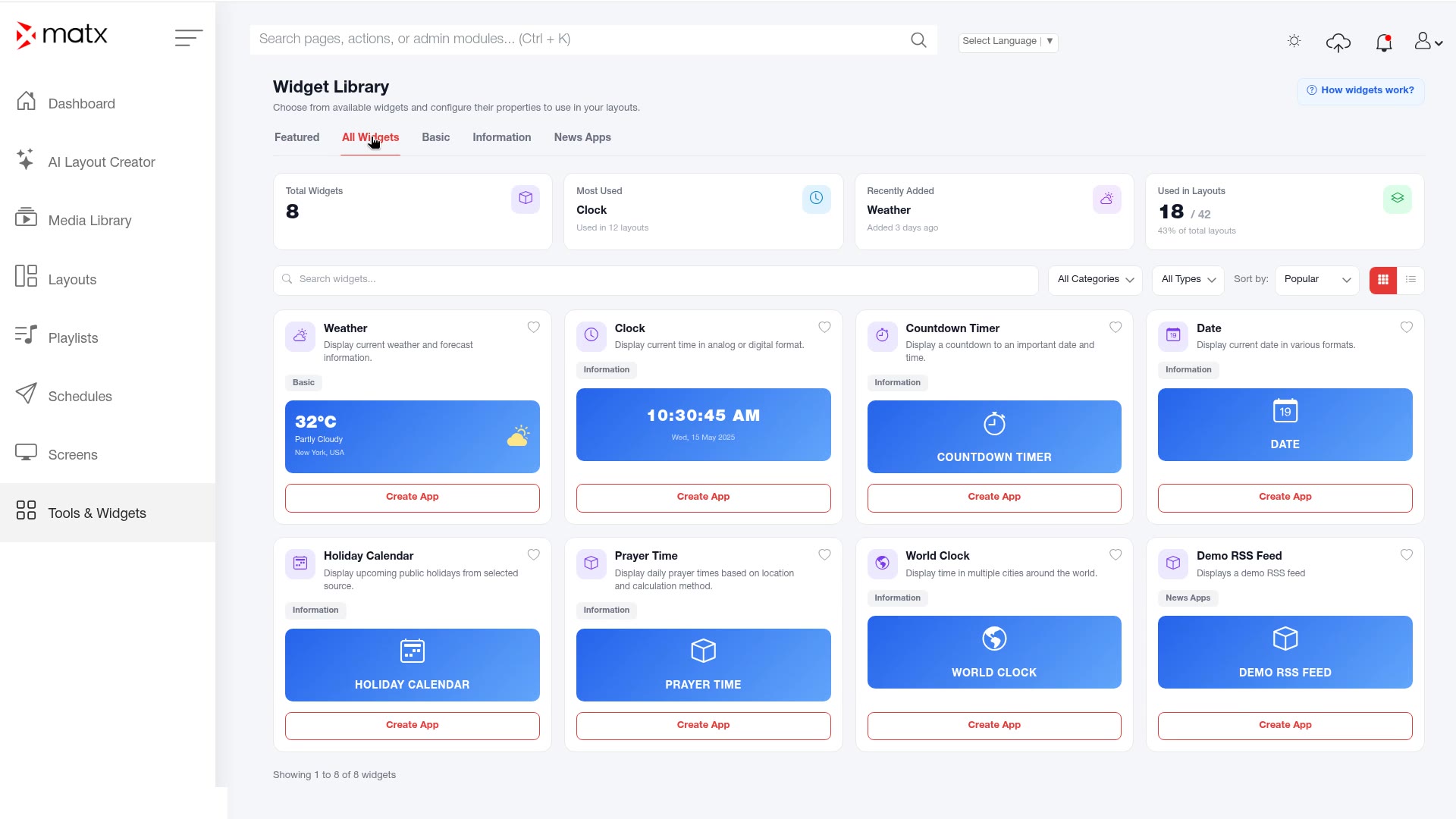 Tools & Widgets, Widget Library
Click Create App.
Complete the settings, such as time zone, style and location.
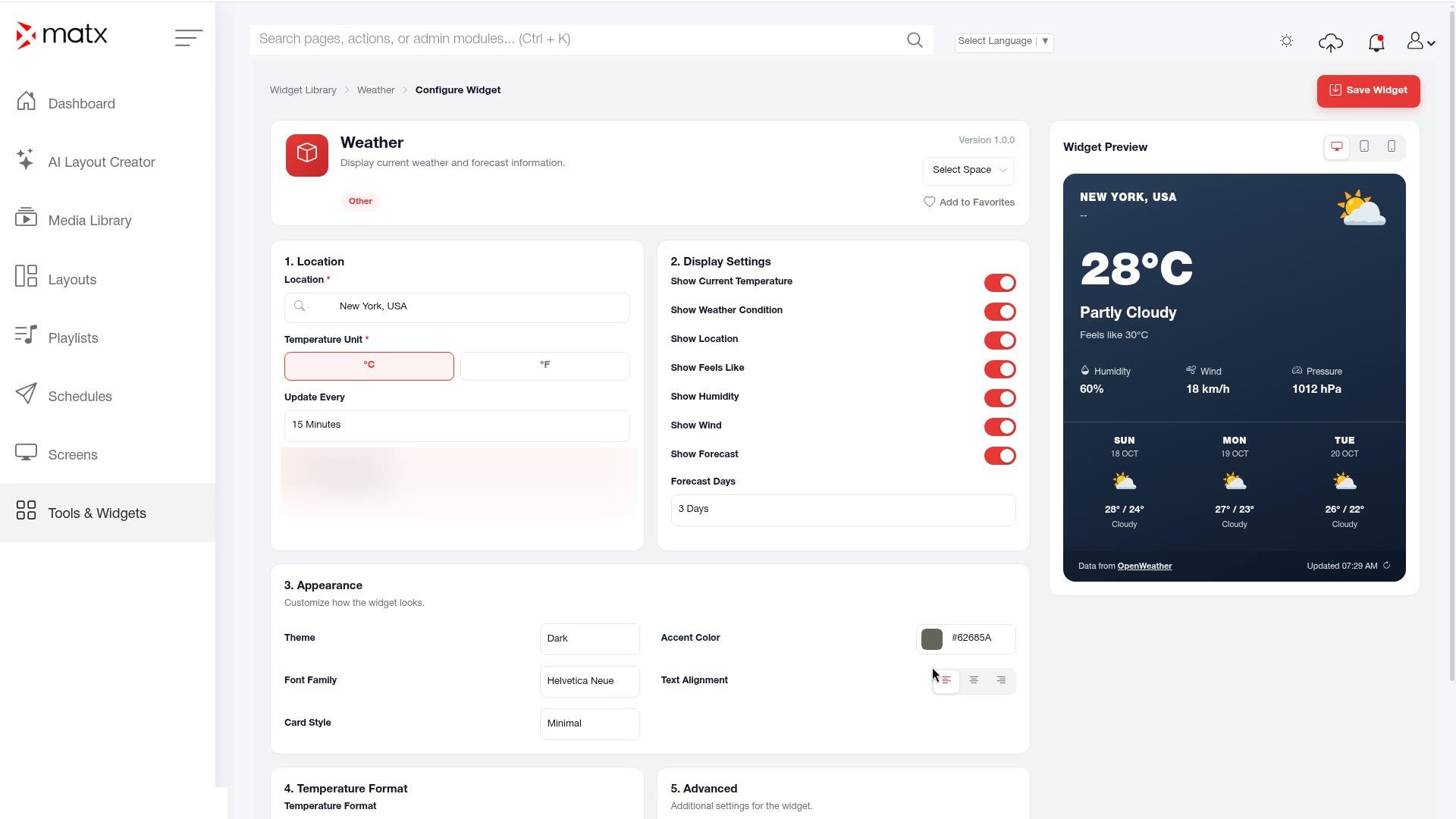 Create App, widget settings
Save the app.
Place the app in a zone of a layout.
 Digital Signage