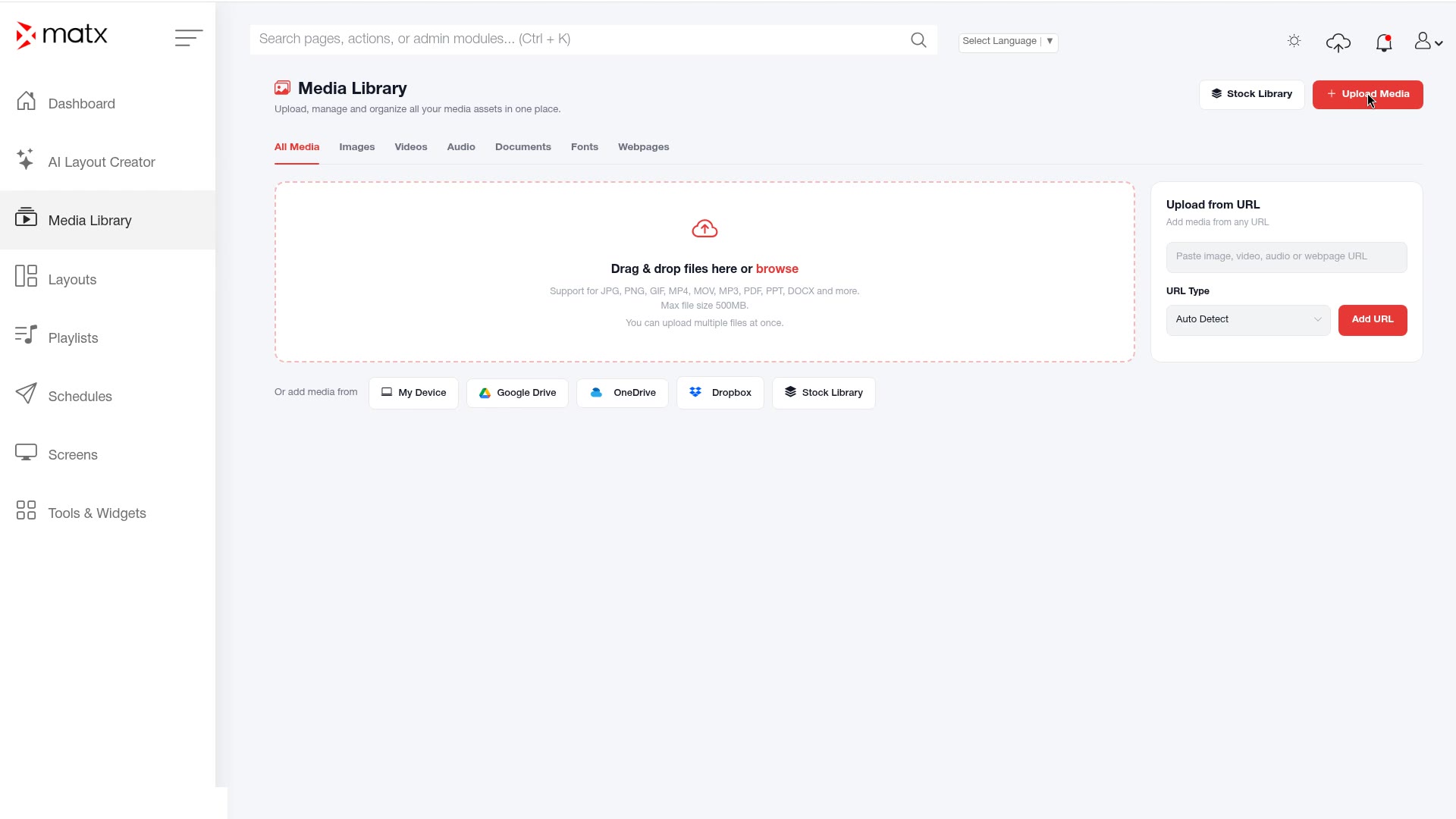
The Media Library stores the content you use on your screens: images and videos, as well as fonts and webpages. Everything you place in layouts and playlists comes from here.
Open Add Media to bring in content from any of these sources:
Source
Use it to
My Device
Upload files from your computer.
Google Drive
Import files from Google Drive.
OneDrive
Import files from OneDrive.
Dropbox
Import files from Dropbox.
Stock Library
Pick visuals from the stock library.
Upload from URL
Add a file from a web address.
4.2 Upload media from your device
In the sidebar, select Media Library.
Open Add Media.
Media Library, Add Media page
Select My Device and choose the files to upload.
Select the Virtual Space for the files.
Start the upload and wait for it to finish.
4.3 Import from Google Drive, OneDrive or Dropbox
In the Media Library, open Add Media.
Select Google Drive, OneDrive or Dropbox.
Follow the prompts to connect your account, if asked.
ScreenshotAdd Media, cloud source sign-in
Choose the files to import.
Select the Virtual Space and complete the import.
4.4 Use the Stock Library or upload from a URL
Stock Library
In Add Media, select Stock Library.
Browse or search for a visual and select it.
ScreenshotAdd Media, Stock Library
Select the Virtual Space and add the item to your library.
Upload from URL
In Add Media, select Upload from URL.
Paste the web address of the file.
Select the Virtual Space and add the file.
4.5 Add fonts and webpages
Besides images and videos, the Media Library also holds fonts and webpages.
Fonts keep text in your layouts consistent with your brand. Font files can be TTF, OTF, WOFF or WOFF2.
Webpages let you show web content on a screen as part of a layout or playlist.
In the Media Library, open Add Media.
Choose the option for a font or a webpage and provide the file or address.
ScreenshotAdd Media, fonts and webpages
Select the Virtual Space and save.
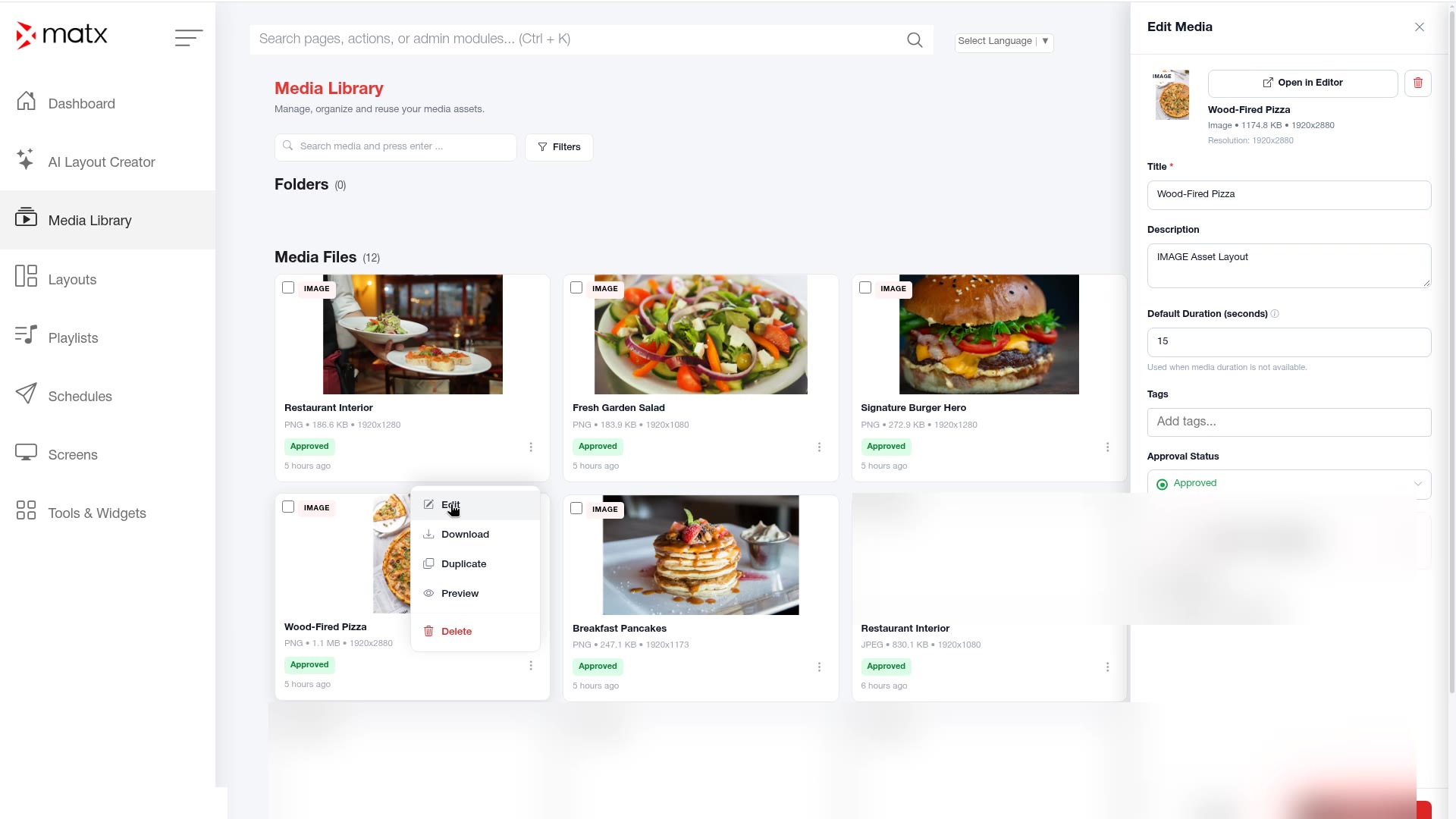
4.6 Edit media details
In the Media Library, find the item you want to change.
Open the Edit Media drawer for the item.
Media Library, Edit Media drawer
Update the details and save.
Still need help?
Email support@matxsignage.com and tell us your Device Name or what you were trying to do.
 Digital Signage