3.1 Before you add a screenEach screen in MATX is a device running the MATX player app. The player app is Android based (built with Flutter) and activates against a MATX license.
Have the following ready:
A supported Android device connected to the screen, with a working network connection. An available license in License Management . The device's ID or serial number. The Virtual Space the screen belongs to, and the time zone of its location. Note The player app runs on Android devices. For recommended models for your deployment, contact support@matxsignage.com .
3.2 Add a device in the portalIn the sidebar, select Screens .
Open Add New Device .
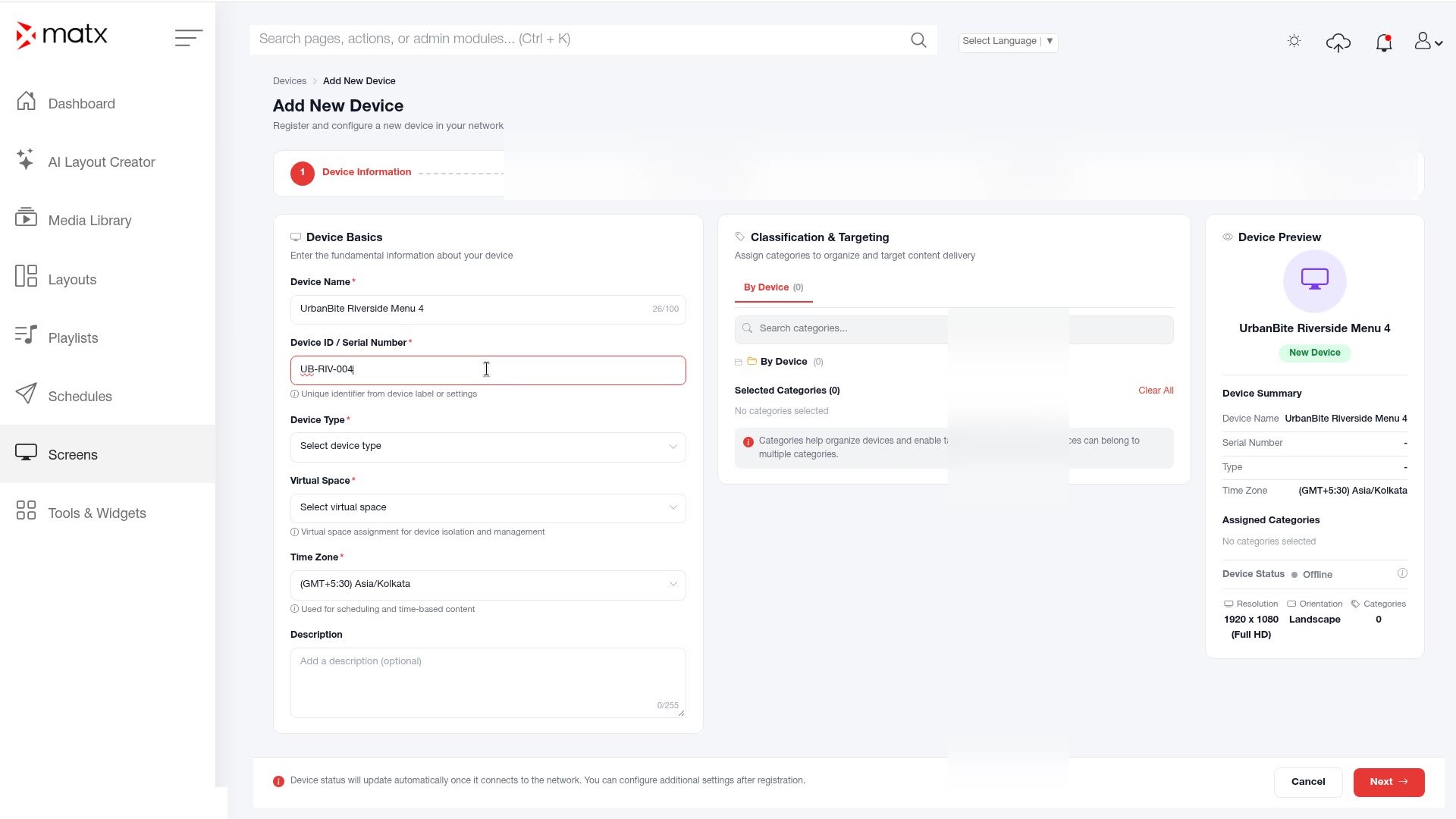
Complete the fields described below.
Screens, Add New Device form Save the device.
Field What to enter Device Name A name people will recognize, such as the branch and screen position. Device ID/Serial Number The identifier of the physical device. Device Type The type of device that runs the player. Virtual Space The Virtual Space the screen belongs to. Time Zone The time zone where the screen is located.
Tip Agree on a naming pattern before you roll out, for example city, branch and screen position. Consistent names make the Screens list much easier to search.
3.3 Install and activate the player appInstall the MATX player app on the Android device. Contact support@matxsignage.com for the player app download link.
Open the player app on the device.
Follow the on-screen prompts to activate the player against a MATX license.
Screenshot Player app, activation screenIn the portal, go to Screens and check that the device status changes from Offline to Online .
Warning If the device stays Offline after activation, check the network connection first. See A device shows Offline .
3.4 Assign and manage licensesEach player activates against a license. License Management is where administrators assign licenses.
Open the profile menu and select License Management .
Review your licenses and which devices they are assigned to.
Screenshot License Management pageAssign a license to the device you want to activate.
The Active Licenses card on the Dashboard shows your license use at a glance.
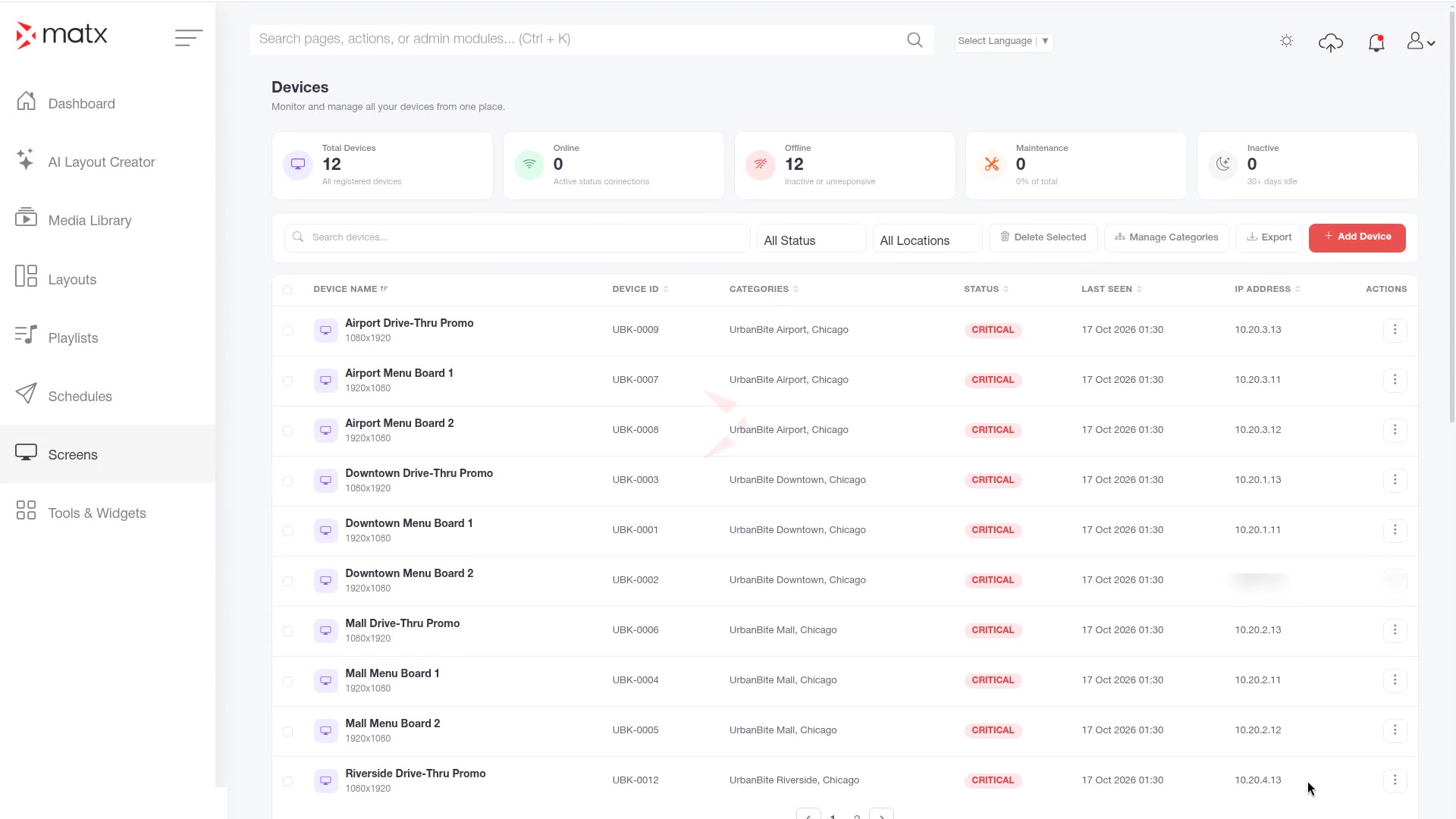
3.5 Monitor screens and open device detailsThe Screens page lists every device with its status (online or offline) and health.
In the sidebar, select Screens .
Scan the list for devices that are offline or show a health problem.
Screens list with status and health Select a device to open its detail page.
Review the device details.
Screenshot Screens, device detail pageTip Check the Online Screens and Failed Devices/Alerts cards on the Dashboard each morning to catch problems before branches open.
 Digital Signage