MATX Digital Signage is a corporate digital signage CMS for multi-site chains such as restaurants, banks, retailers and pharmacies. Head office, regional teams and branches manage every screen in the network from one web portal, and a player app runs the published content on each screen.
MATX is launching in Canada and is built for businesses worldwide. The portal and this Help Center are available in English and French.
How content reaches a screen
Most work in MATX follows the same path. Knowing it makes every other article easier to follow.
Add images, videos, fonts and webpages to the Media Library.
Arrange content on the screen with Layouts, by hand or with the AI Layout Creator. Add live content such as clocks and weather from Tools & Widgets.
Put media items in order in a Playlist and set how long each one plays.
Use Schedules to decide when a playlist or layout plays, and on which screens.
Check delivery and screen health on the Dashboard and the Screens page.
1.2 Sign in and find your way around
You work in MATX through a web browser. The portal is at https://app.matxsignage.com. Your administrator gives you your sign-in details.
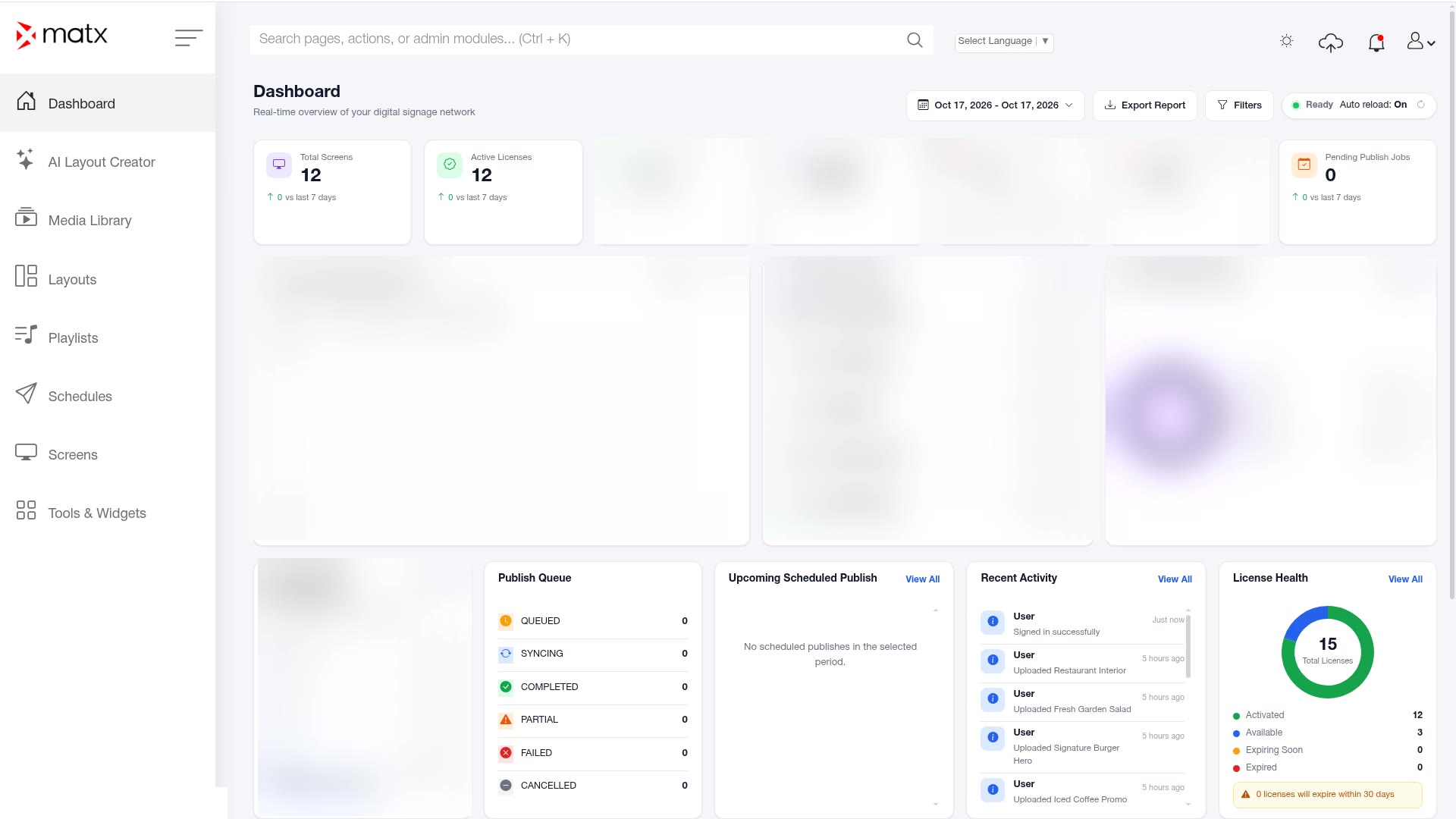
Review the Dashboard, which opens after you sign in. It gives you an overview of your screen network.
Dashboard, summary cards after sign-in
The sidebar
The sidebar on the left takes you to every content area of the portal.
Sidebar item
What you do there
Dashboard
Monitor screens, licenses, campaigns and publishing at a glance.
AI Layout Creator
Describe a design in plain words and generate layout variations.
Media Library
Upload, import and organize images, videos, fonts and webpages.
Layouts
Design what appears where on a screen, using zones and layers.
Playlists
Put content in order and set how long each item plays.
Schedules
Decide when content plays and on which screens.
Screens
Add devices, check their status and open device details.
Tools & Widgets
Create live apps such as Weather, Clock and Countdown Timer.
The profile menu
Open the profile menu to reach My Profile and, if your role allows it, the administration pages: Administration Overview, Users, Roles & Permissions, License Management, Audit Logs, Virtual Spaces, System Settings, Analytics and What's New.
ScreenshotProfile menu, expanded
1.3 Quick start: publish your first content
Use this checklist the first time you set up a branch. Each step links to the full article.
 Digital Signage